Basic Examples
All the examples are provided in the examples directory. In order to run then, you need to clone the repository:
git clone https://github.com/sbobek/tobii-pytracker.git
cd tobii-pytracker
The examples are located in examples subdirectory, and each example has its own subdirectory with the experiment configuration, recorded output, and analysis notebook.
They demonstrate how to configure Tobii-PyTracker, collect
multimodal experimental data, load previously recorded sessions, and apply the
available data analyzers. Examples are provided for image, time-series, and
text stimuli.
Before running an example, install Tobii-PyTracker as described in the
Installation Instructions and adjust the configuration
files in the example’s configs directory to match the local environment
and eye-tracker settings.
For this basic examples, you only need to set your screen resolution correctly, so that the experiment items are displayed in the correct size and position:
# in ./examples/<example_name>/configs/config.yaml
display:
   monitor:
      name: spectrum_monitor
      resolution:
         - 1920 #change this to your screen width
         - 1080 #change this to your screen height
Each example already contains recorded output that can be used to run the analysis without collecting new data. A new recording is only required when testing the data-collection workflow or a modified experiment configuration.
Collecting Data
For example, to collect gaze and voice data for the image-classification experiment using the mouse-emulated eye tracker, open the image example directory and run:
cd examples/images
tobii-pytracker --eyetracker_config_file ./configs/mouse_eyetracker_config.yaml --enable_eyetracker --enable_voice
The mouse-emulated eye tracker makes it possible to test the complete collection workflow without connecting a physical eye tracker. Note that the directory contains already recorded output, so running the above command is not required to execute the analysis.
In case you have a physical Tobii eye tracker connected, you can use the following command to collect gaze data from it:
cd examples/images
tobii-pytracker --eyetracker_config_file ./configs/eyetracker_config.yaml --enable_eyetracker --enable_voice
Note: The gaze will only be recorded if you press and hold the right mouse button while moving the mouse. This is to simulate the gaze movement and to allow blink simulation when the right mouse button is released.
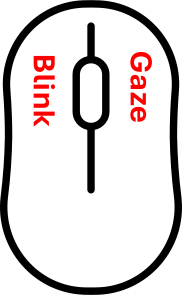
See more details on mouse emulation in the Mouse EyeTracker Emulation page.
Running Analysis
After collection, open the Jupyter notebook provided in the same example
directory and run its cells. The notebook loads sessions from the output
directory, executes the relevant analyzers, and presents the resulting tables
and visualizations.
To run the analysis without collecting new data, simply open the notebook and execute its cells. The notebook will load the previously recorded output and demonstrate the analysis workflow.
See the Data Analyzers page for descriptions of the analyzers, their parameters and analysis scopes, and guidance on interpreting their output.
cd examples/images
jupyterlab
- The examples contain examples of usage for different analyzers. Each example has its own notebook with the analysis workflow and all contain following demonstrations:
loading_demo.ipynb – Demonstrates how to load and visualize the collected data. For details see the Data Loading and Visualization page.
analyzers_demo.ipynb – Shows how to use the different analyzers. For details see the Data Analyzers page.
bbox_analysis.ipynb – Illustrates how to perform gaze to raw data alignment with different bounding boxes analyzers. For details see the Data Analyzers page.
Image Data Example
The examples/images directory contains an image-classification experiment.
During each trial, an image is presented and the participant assigns it to one
of the available categories.
The example includes data collected with a Tobii Pro Spark eye tracker, together with the corresponding experiment configuration, screenshots, gaze samples, participant responses, and analysis notebook. It demonstrates the complete workflow for:
presenting image stimuli and collecting classification responses;
recording gaze coordinates and pupil measurements;
associating gaze samples with individual experiment items;
summarizing gaze globally, per experiment outcome, or per image;
detecting fixations and saccades;
constructing scanpaths;
generating heatmaps and focus maps;
measuring gaze entropy and spatial coverage;
clustering gaze observations into spatial groups;
assigning gaze observations to image regions.
In the output data, set_name normally identifies a participant or one
recorded experiment outcome. The slide_index identifies the image’s
position within that experiment. Consequently, analysis performed with
per="slide" produces separate results for every set_name and
slide_index combination.
The experiment contains files with recorded voice while an image is displayed. The
included voice-transcription workflow demonstrates how VoiceTranscription
uses Whisper to create timestamped transcript segments and align them with
gaze samples from the same item. This makes it possible to inspect where a
participant was looking while a particular statement was spoken.
Note that if you want to run the voice-transcription workflow, you need to install Whisper and its dependencies:
pip install openai-whisper==20250625
The image example also demonstrates attention analysis based on automatically generated or predefined image regions. This can be used to determine which regions received gaze, estimate gaze coverage, and compare attended and unattended regions.
Refer to the analysis notebook in examples/images for the executable
workflow. Detailed explanations of the resulting fixation, saccade, entropy,
clustering, scanpath, region-attention, and voice-alignment outputs are
provided on the Data Analyzers page.
Time-Series Data Example
The examples/time_series directory demonstrates the use of Tobii-PyTracker
with time-series stimuli. It is intended for experiments in which participants
inspect signals, plots, or other sequential numerical data presented as
visual items.
The example illustrates how to:
configure an experiment containing time-series visualizations;
collect gaze observations for each presented signal;
associate gaze samples with the corresponding experiment outcome and item;
inspect the spatial distribution of gaze over individual plots;
detect periods of stable viewing and transitions between inspected regions;
compare visual exploration between time-series items.
The example uses the mouse-emulated eye tracker, allowing a controlled gaze-like trajectory to be reproduced without a physical device.
For time-series experiments, the analysis remains spatial: the gaze coordinates describe where the participant looked on the rendered plot. They should not be confused with the numerical values or timestamps represented by the plotted signal. Relating gaze to a particular signal segment therefore requires a known mapping between screenshot coordinates and the plot axes or predefined regions of interest.
The included notebook loads the recorded output and demonstrates the relevant gaze summaries and event-based analyses. See the Data Analyzers page for details of heatmaps, fixations, saccades, entropy, clustering, and scanpaths.
Text Data Example
The examples/text directory demonstrates a text-based experiment using the
mouse-emulated eye tracker. It includes an experiment configuration, example
text stimuli, previously collected output, and a notebook for validating and
analyzing the recorded data.
The example demonstrates how to:
present text stimuli and collect participant responses;
record gaze-like observations while textual content is displayed;
associate each observation with the corresponding text item;
examine which parts of the displayed text received attention;
identify stable viewing locations and transitions between them;
combine gaze-derived measures with task responses.
Text stimuli are stored as experiment items and identified in the output by
set_name and slide_index. Slide-level analysis can therefore be used
to inspect each text item separately, while set-level analysis summarizes the
complete recorded experiment outcome.
When text regions or bounding boxes are defined, region-attention analysis can be used to determine whether gaze entered a target passage or other area of interest. Fixation-derived measures can additionally support analyses such as time to first fixation and dwell time, provided that the relevant textual regions and timing rules are defined by the experiment.
Because this example uses mouse-emulated gaze, its included output is intended primarily to demonstrate data flow, item alignment, and analysis execution. Research conclusions about reading or visual cognition require observations collected with an appropriate eye tracker and a suitable experimental design.
Open the notebook in examples/text to run the complete analysis workflow.
See the Data Analyzers page for detailed
descriptions and interpretation guidance.